Before you start
You need four things.
| Need | Why |
|---|---|
| A Mac with Apple silicon running macOS 13 or later | The app ships its own runtime, built for Apple silicon |
| A Gmail mailbox | Either a Google Workspace account (mail on your own domain) or a personal @gmail.com account |
| An API key for an AI provider | Anthropic, OpenAI, Google, or any OpenAI-compatible service. A local model through Ollama or LM Studio works too and needs no key |
| A license key | $29 once, from the pricing section. The key arrives by email from Kelviq |
You also need an OpenAI key if you keep the default embedding provider (OpenAI, text-embedding-3-small). Embeddings are how your docs and sent mail are indexed. If your drafting provider is OpenAI, one key serves both. Google and OpenAI-compatible servers can embed too; Anthropic cannot. See Configuration.
A word on which Google account you have: a Workspace account is the easy case (no warning screens, tokens that never expire). A personal @gmail.com account is fully supported, with one extra click explained in the Gmail guide.
1. Install the app
- Download InboxMinder.dmg.
- Open it and drag InboxMinder to Applications.
- Launch it from Applications or Spotlight. A small leaf appears in the menu bar, and the setup wizard opens.
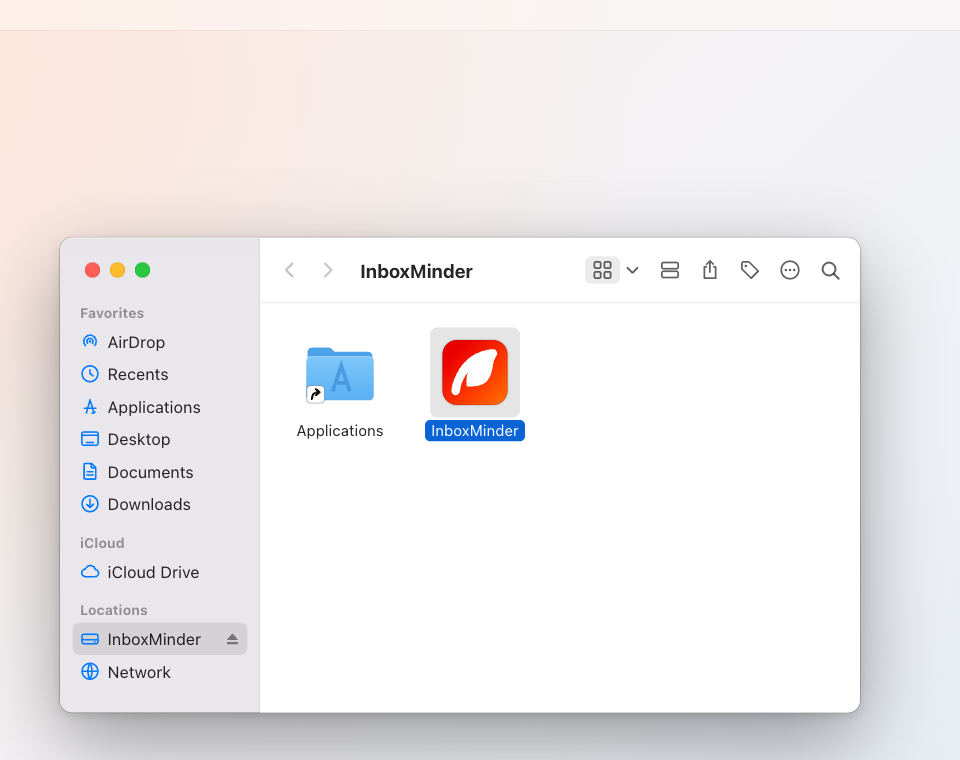
The app is signed with a Developer ID and notarized by Apple, so it opens without any security override.
If the leaf is there but no wizard appeared, click the leaf and choose Finish Setting Up….
2. The setup wizard
The wizard has six steps. A rail on the left shows them; you can go back to any step, and a finished step stays finished. Everything you type is handed to the bundled command line over a private channel and stored in the macOS Keychain. The app itself never writes a secret anywhere.
Welcome
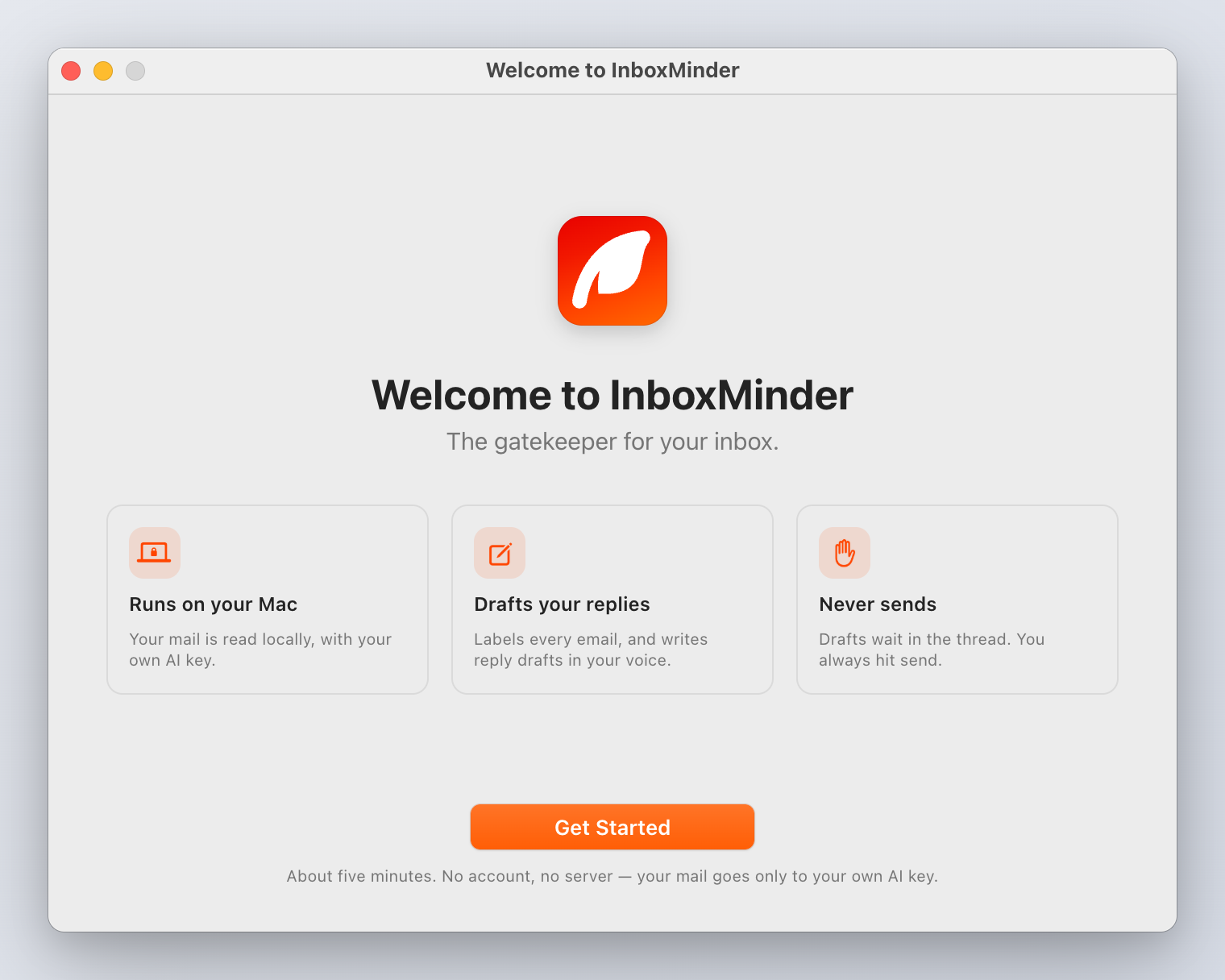
What the app does, in three lines: runs on your Mac, drafts your replies, never sends. Click Get Started.
Choose your AI
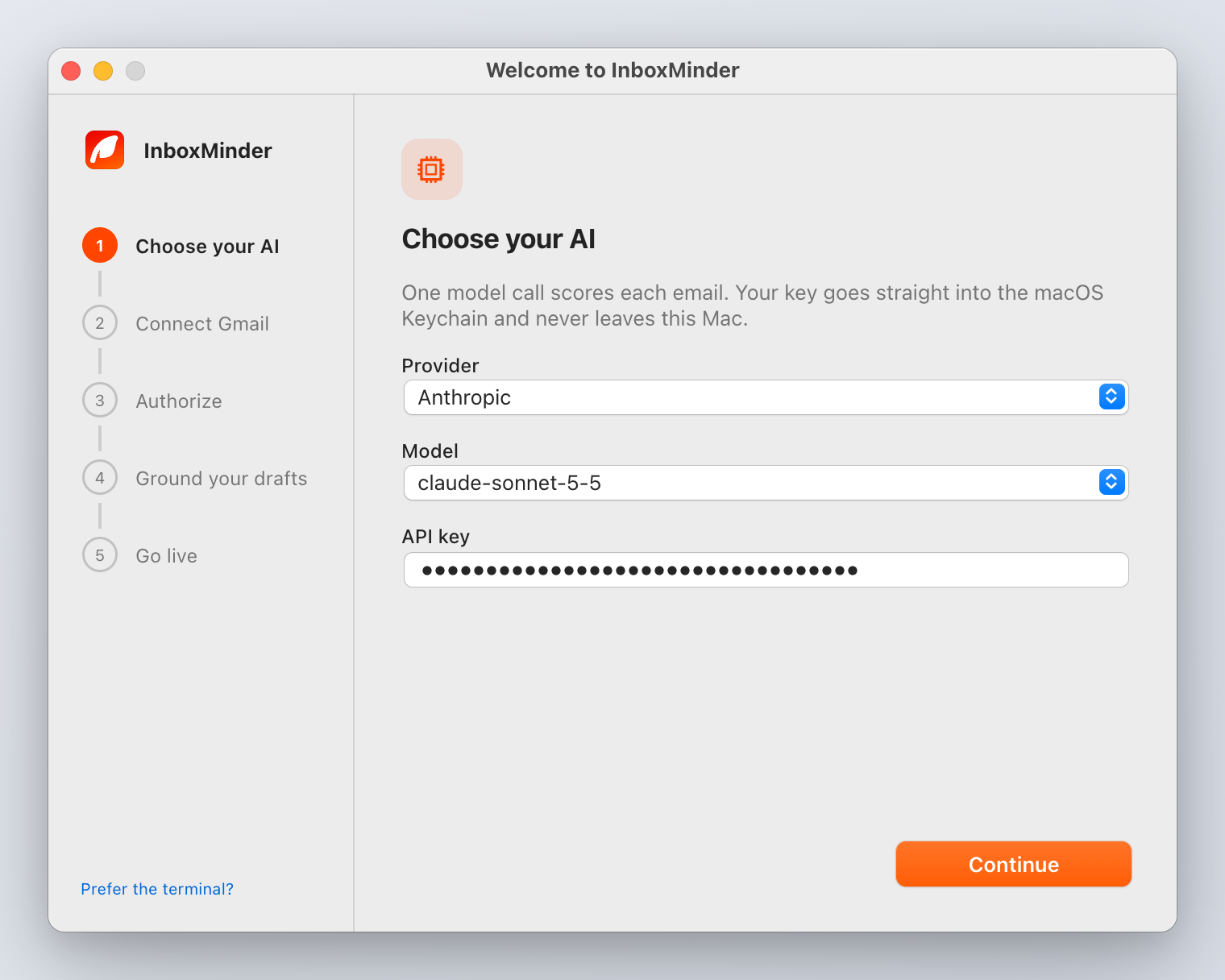
One model call scores each email, and one writes each draft.
- Provider: Anthropic, OpenAI, Google, or OpenAI-compatible (Groq, OpenRouter, Ollama, LM Studio, vLLM and anything else that speaks the OpenAI API).
- Model: pick from the list or choose Custom… and paste any model id. The default is a strong general model; a cheaper one works fine for classification-heavy inboxes.
- Base URL (OpenAI-compatible only): where the server lives. A local Ollama is
http://localhost:11434/v1. Local servers need no key. - API key: pasted once, stored in the Keychain, never shown again.
You can change all of this later in Preferences → Model.
Connect your own Gmail app
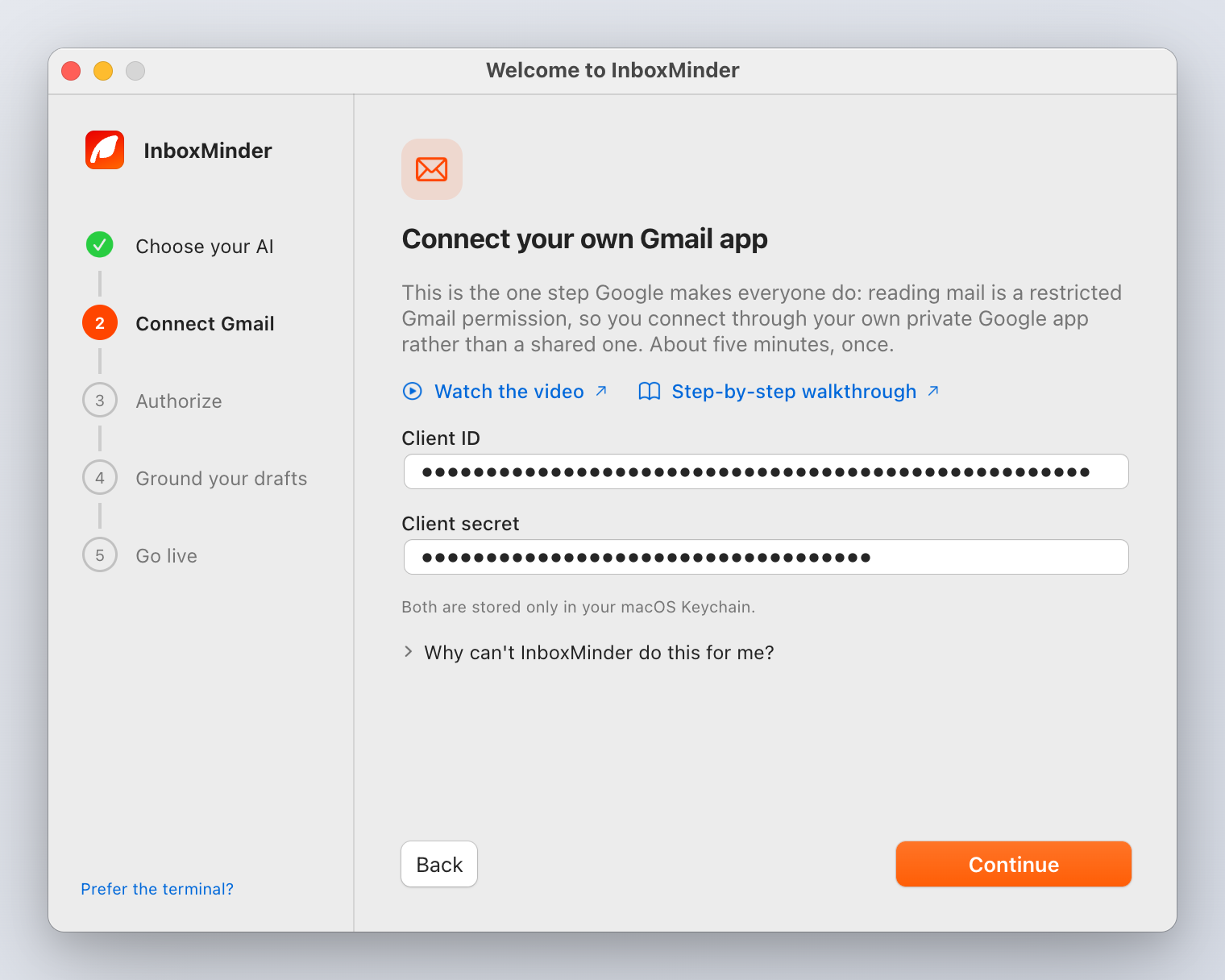
Reading mail is a restricted Gmail permission, so InboxMinder connects through a Google Cloud OAuth app that you own rather than a shared one. There is no middleman with access to your mail, by design.
Follow Creating your Gmail app, or click Watch the video in the wizard. You will come back with two strings: a Client ID (ends in .apps.googleusercontent.com) and a Client secret (starts with GOCSPX-). Paste both and click Continue.
Authorize Gmail
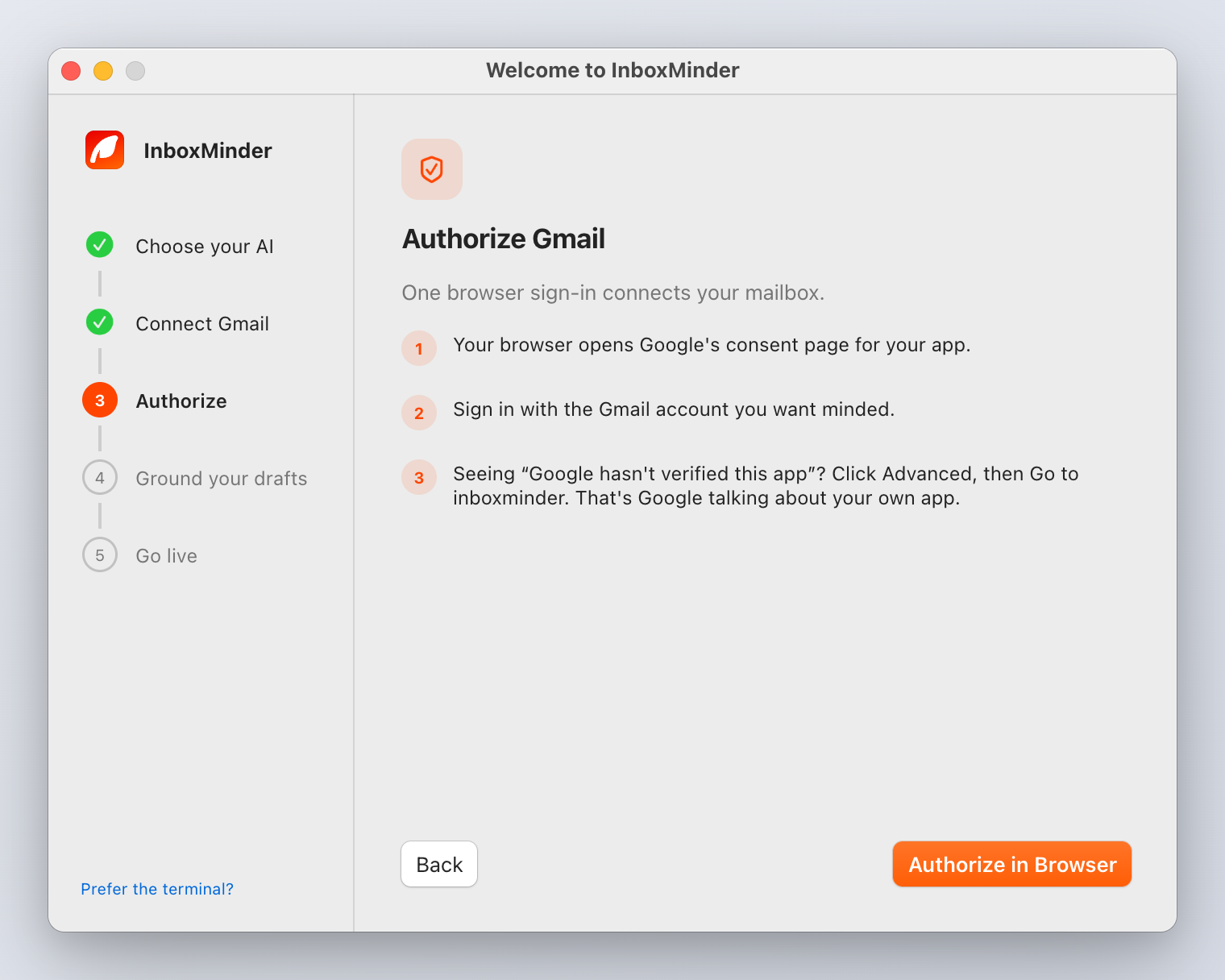
Click Authorize in Browser. Your browser opens Google's consent page; sign in with the mailbox you want minded and accept. If your Google app is "External", Google shows a "hasn't verified this app" warning once: click Advanced, then Go to inboxminder (unsafe). It is your own app in your own account.
The browser tab says authorization is complete and the wizard moves on. The only permission requested is gmail.modify: read mail and write labels and drafts. There is no send permission. Tokens land in the Keychain. The step has a Cancel button and a five-minute limit; if it times out, run it again.
Ground your drafts
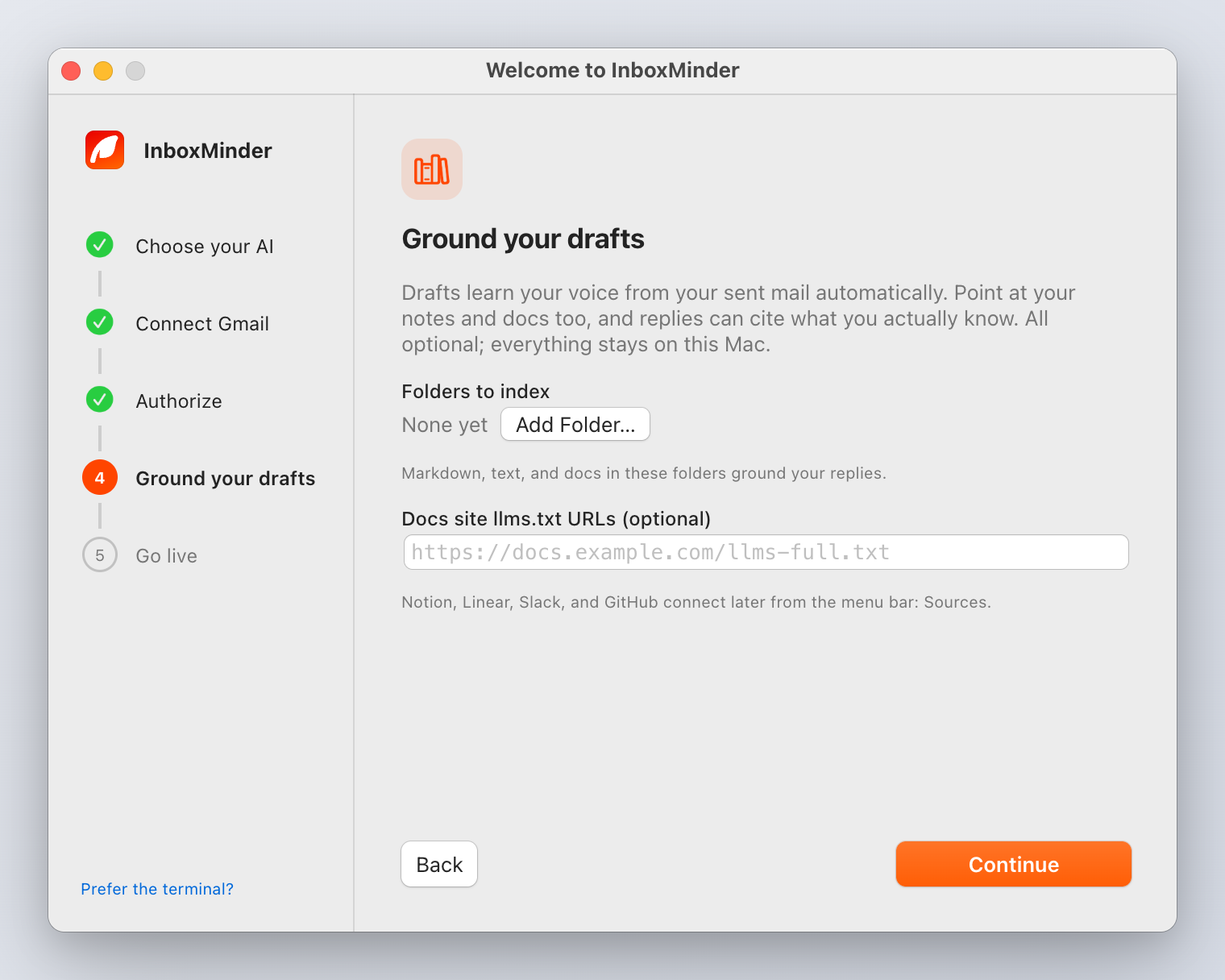
Drafts learn your voice from your sent mail automatically. This step is about what they should know.
- Folders to index: click Add Folder… and pick folders of Markdown, text or docs. Your notes, a handbook, a policies folder.
- Docs site llms.txt URLs: if your public docs publish an
llms.txtorllms-full.txt, paste the URL.
Both are optional, and Notion, Linear, Slack and GitHub connect later from the menu bar's Sources editor. Everything indexed stays on this Mac. Click Continue.
Go live
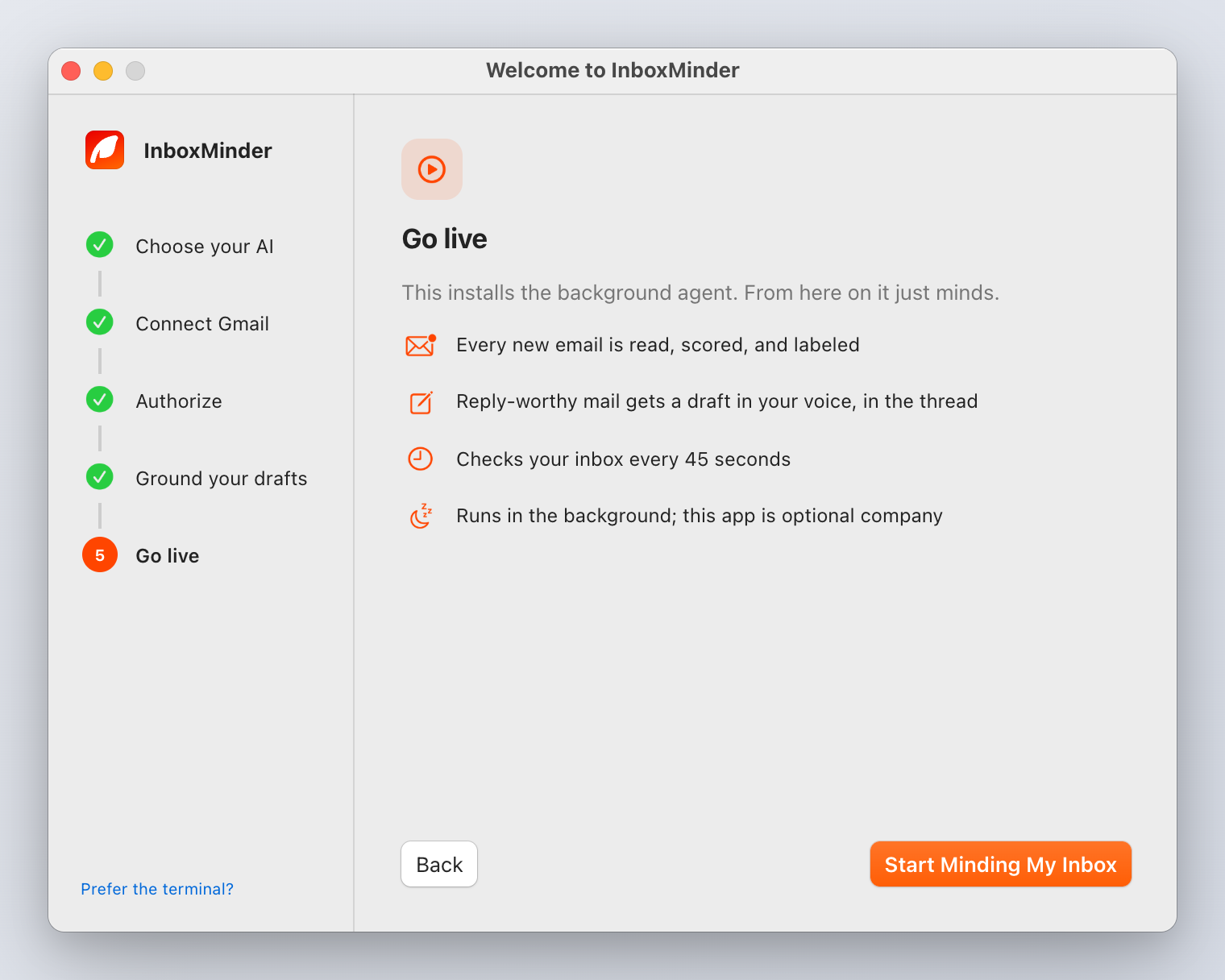
Click Start Minding My Inbox. This does three things:
- Builds the local index: your sent mail plus every source you added, chunked, embedded through your embedding provider, stored under
~/.inboxminder/index. - Registers a launchd agent, the macOS service manager. It runs with no terminal, survives reboots and restarts itself if it ever stops.
- Starts watching. Every new email is read, scored and labeled within about 45 seconds of arriving.
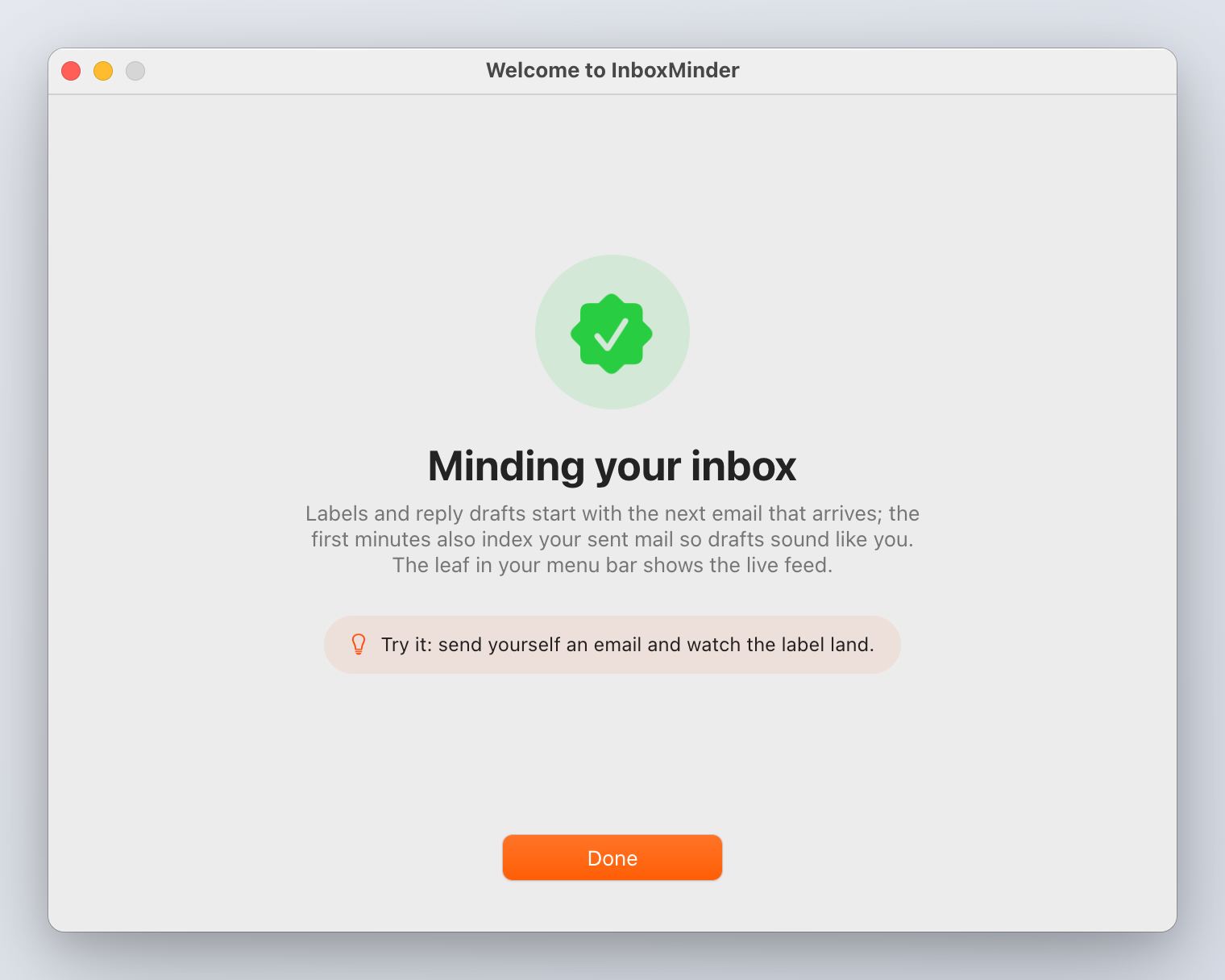
The final screen says Minding your inbox. Send yourself an email and watch the label land.
Unlock the assistant
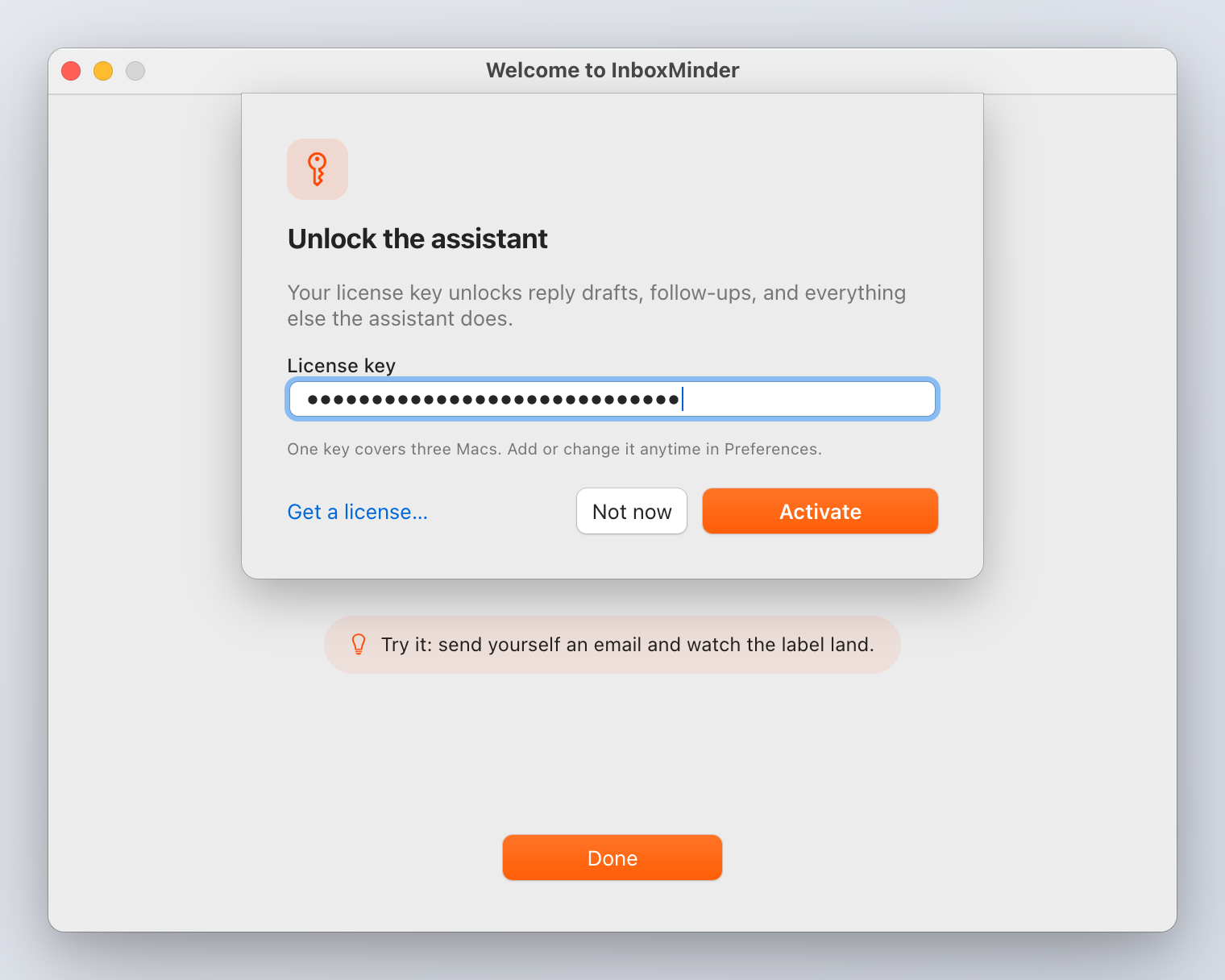
Once the mailbox is being minded, a sheet asks for your license key. Paste it and click Activate; the menu bar shows the unlock at once and the first drafts follow within a poll or two. Get a license… opens the checkout if you do not have one yet.
Without an active license InboxMinder does not write drafts, follow up, hand off to Linear or polish text, and nothing is ever deleted. You can activate any time in Preferences → Gatekeeper → License.
One license covers one Mac at a time and every profile on it. To move it, deactivate on the old Mac first (Preferences, or inboxminder license deactivate). If the old Mac is gone, email hi@kelviq.com and the key is released.
3. The first hour
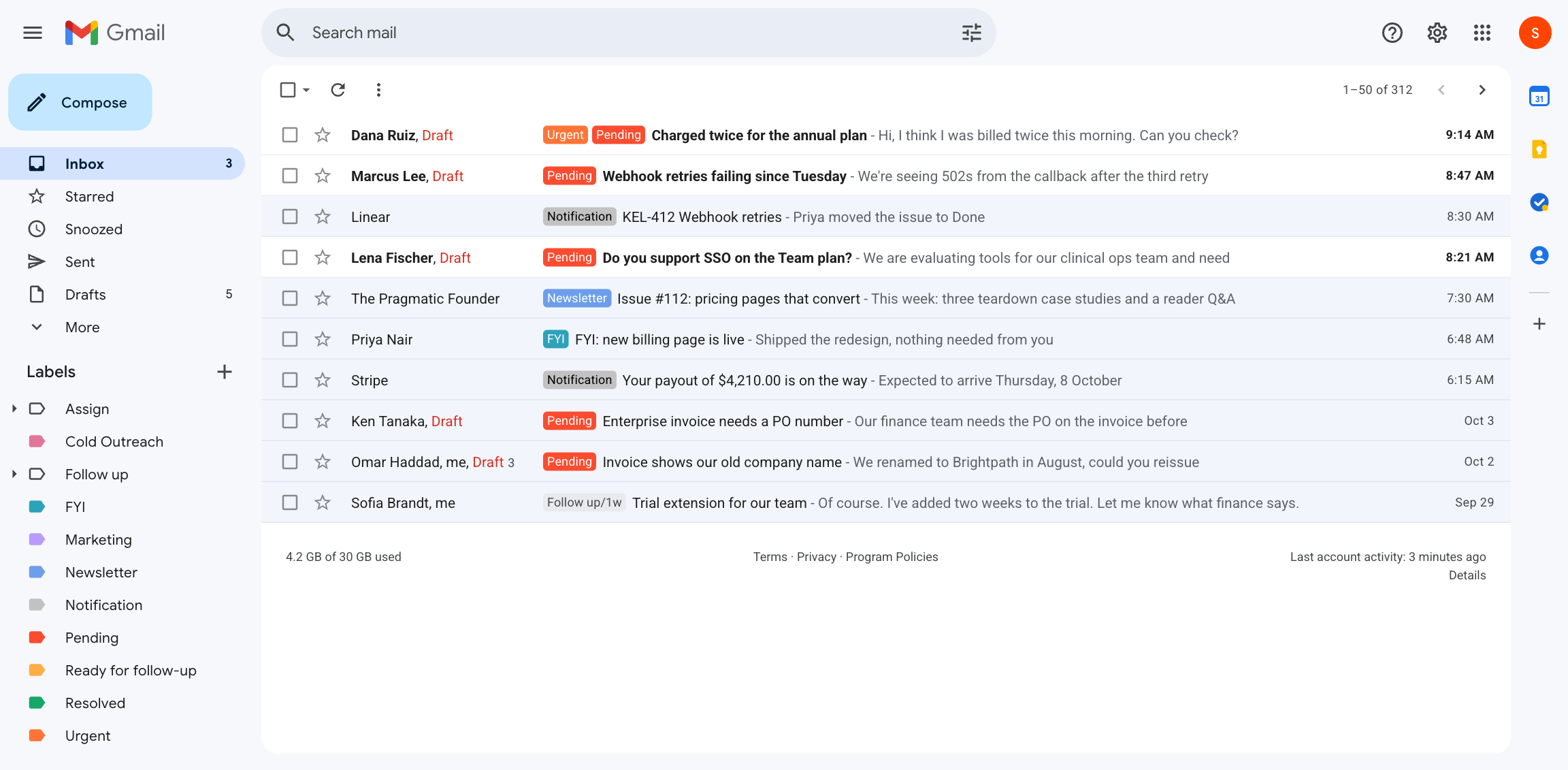
Labels appear first. Within a minute of a new email, one of these lands on it: Newsletter, Notification, Marketing, Cold Outreach, FYI, or, for mail that needs a reply, Pending. Urgent reply-worthy mail also gets Urgent and a macOS notification carrying the subject only. Labels arrive pre-colored; rename or recolor them in Gmail freely, they are never read back as state. Triage and labels has the full story.
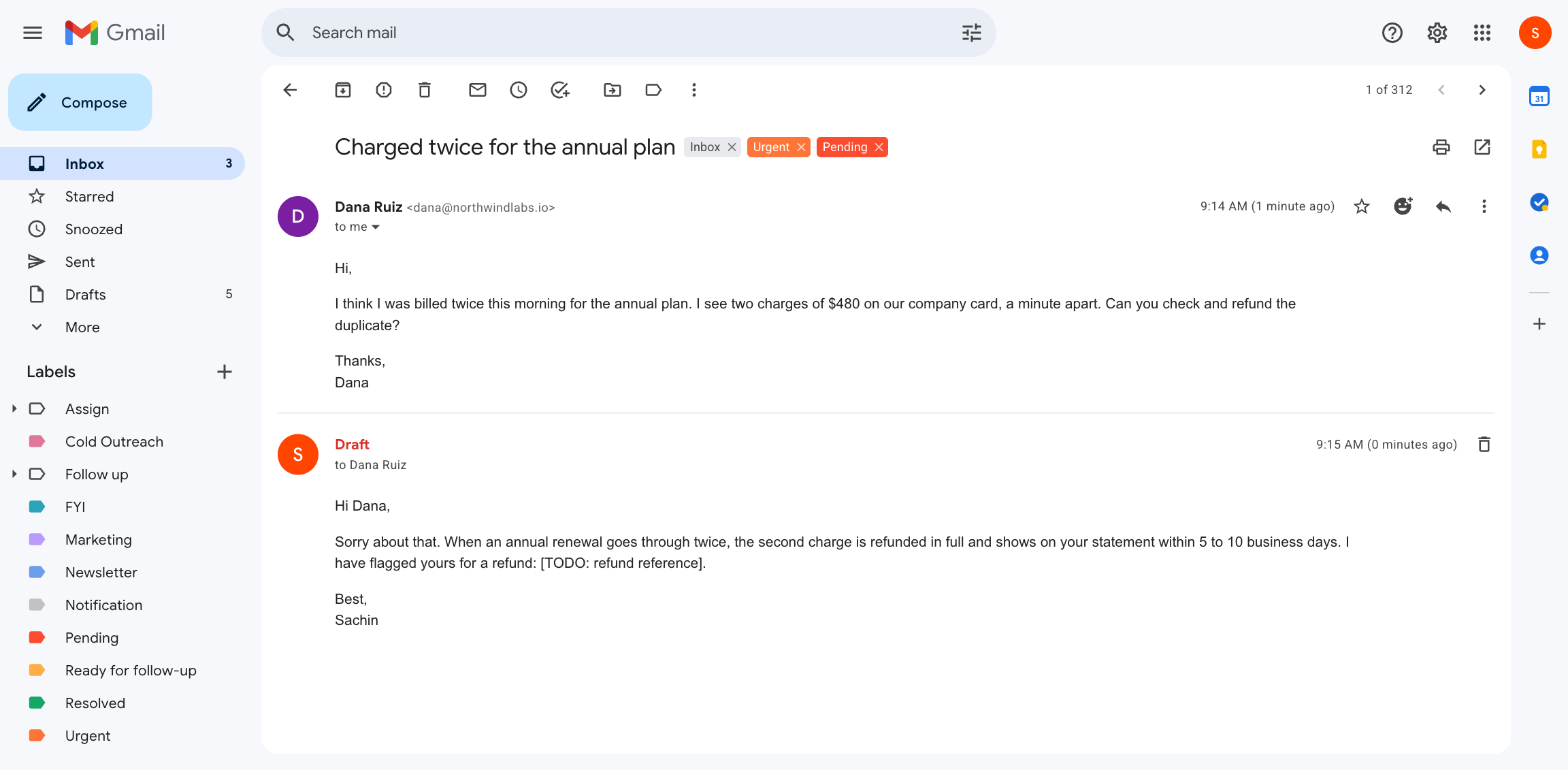
Drafts appear in the thread. Open a Pending thread in Gmail on any device and the reply is waiting in Drafts. Edit it, send it, or delete it. The app never drafts the same message twice.
Voice takes a while. Sent mail is indexed in batches of 200 per index run, oldest history backfilling run by run, so on a large mailbox the first drafts lean on your docs more than your phrasing. The Voice section of the InboxMinder window shows what has been read so far.
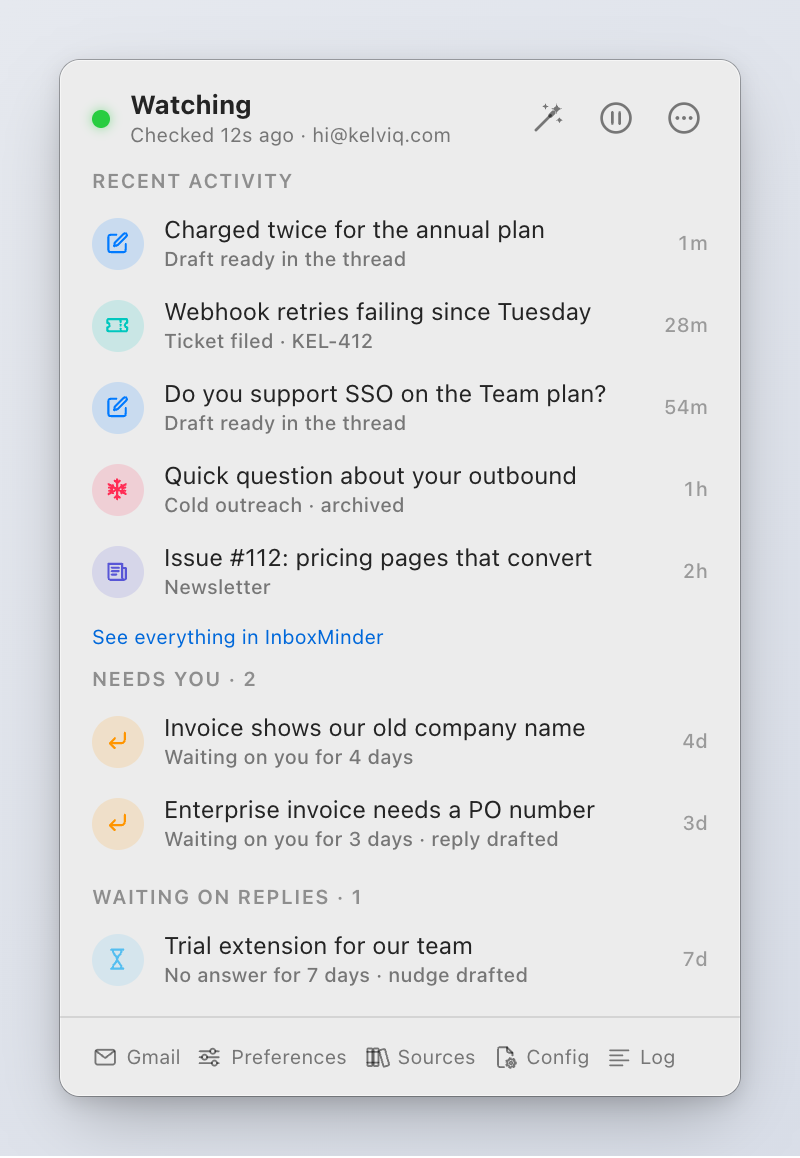
Check on it from the menu bar. The leaf shows a green dot and the time of the last check, recent activity, who is waiting on you, and who has gone quiet. Pause from there and mail simply waits. The app guide covers every screen.
4. Settle in
Things worth doing in the first week, each a few minutes:
- Tell it what you know. Write a note in the window's Your notes section ("our refund window is 14 days; never promise same-day"). A saved note is usable by the next draft.
- Add a signature and a line of style in Preferences → Assistant → Voice. The signature is appended after generation, so the model never sees or changes it.
- Turn on follow-ups in Preferences → Features. Reply to a thread, add a
Follow up/1wlabel in Gmail, and a nudge draft appears if they stay quiet. Follow-ups. - Connect Linear if your team uses it: paste a personal API key and add colleagues under Hand off to a colleague. Then an
Assign/Namelabel on a thread files an issue assigned to them. Linear. - Try Polish: select text you typed anywhere, right-click, Services → Polish in my tone. Or copy it and press ⌃⌥P. Polish.
- Skip junk from the inbox: Preferences → Gatekeeper → Skip the inbox archives chosen categories (labels still applied, nothing deleted).
Setting up from the terminal instead
The app is a shell over a command-line tool, and the whole setup is available there. From a source checkout use pnpm dev <command>; from the installed app, the CLI is bundled and you can alias it:
alias inboxminder='"/Applications/InboxMinder.app/Contents/Resources/runtime/bin/node" "/Applications/InboxMinder.app/Contents/Resources/runtime/cli/dist/cli.js"'
Then:
inboxminder init
init asks for your provider, model and key, an embeddings key, which knowledge sources to ground drafts in, and (optionally) the Gmail client id and secret. It writes ~/.config/inboxminder/config.toml, puts every secret in the Keychain, and offers to go live right away. If you skipped Gmail there:
inboxminder set-key gmail-client-id
inboxminder set-key gmail-client-secret
inboxminder up
up authorizes Gmail in the browser if needed, builds the index, and installs the background agent. It is idempotent; run it again any time. Then activate the license:
inboxminder license activate <key>
Verify:
inboxminder agent status
Preview what would happen to one message without labeling or drafting anything:
inboxminder classify <gmail-message-id>
inboxminder draft <gmail-message-id>
The message id is the long hex string in a Gmail message URL after #inbox/ (or in Show original). The full command reference lists everything else.
What happens on your Mac after setup
| Where | What |
|---|---|
~/Library/LaunchAgents/com.inboxminder.agent.plist | The background agent definition. It runs the bundled runtime's cli.js watch |
~/.config/inboxminder/config.toml | Your settings. No secrets, safe to edit by hand |
~/.config/inboxminder/instructions.md | Standing instructions for every draft (create it when you want it) |
~/.config/inboxminder/notes/ | Notes written in the window |
~/.inboxminder/state.db | Which threads were seen, drafted, followed up, resolved |
~/.inboxminder/index/ | The local vector index of your docs and sent mail |
~/.inboxminder/status.json | What the menu bar renders |
~/.inboxminder/logs/watch.log | The log: subjects, senders, labels, timings, provider errors. Never message bodies |
macOS Keychain, service inboxminder | Google tokens, AI keys, connector tokens, the license key |
Quitting the menu bar app never stops the agent; Quit Completely in its menu does both. Nothing phones home: the only network destinations are Gmail, your AI provider, the connectors you enabled, the license check and the update feed. Privacy and data lists each one.